Wednesday, 9 January 2019

System /Environment Variables

Environment Variables

There are several ways to read or write environment variables:
  1. Use the WSH Shell object
  2. Use WMI's Win32_Environment class
  3. Read/write the variables directly from/to the registry
As directly accessing the registry is both risky and usually requires a reboot for the changes to take effect, I would not recommend using it, unless all other methods fail.

WSH Shell Object

Read Environment Variables

Reading an environment variable is simple:
Set wshShell = CreateObject( "WScript.Shell" )
WScript.Echo wshShell.ExpandEnvironmentStrings( "%PATHEXT%" )
wshShell = Nothing
The output will look like this:
.COM;.EXE;.BAT;.CMD;.VBS;.VBE;.JS;.JSE;.WSF;.WSH
The ExpandEnvironmentStrings method can expand environment variables embedded in a string too:
Set wshShell = CreateObject( "WScript.Shell" )
WScript.Echo wshShell.ExpandEnvironmentStrings( "PATH=%PATH%" )
wshShell = Nothing
The output will look like this (but probably longer):
PATH=C:\WINDOWS\system32;C:\WINDOWS;C:\WINDOWS\System32\Wbem
This behaviour is exactly like that of a batch file: the environment variable is replaced by its value when the string is processed.
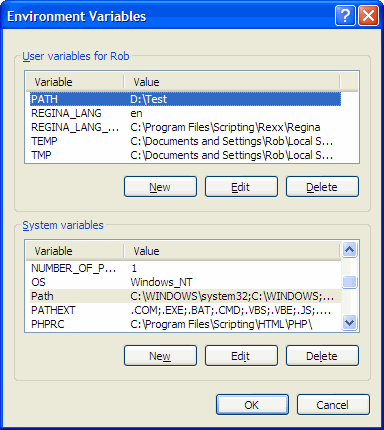
Control panel applet 'System'
Some environment variables are actually the result of two variables being merged. The environment variable PATH, for example, is defined in the system environment as well as in the user environment, as can be seen in this screenshot of the "System" Control Panel applet.
In this case, if we query the PATH environment variable like we did just before, the result will look like this:
PATH=C:\WINDOWS\system32;C:\WINDOWS;C:\WINDOWS\System32\Wbem;D:\Test
As we can see, the PATH value from the user environment was appended to the value from the system environment.
Other user variables, like TEMPoverwrite their system counterpart:
Set wshShell = CreateObject( "WScript.Shell" )
WScript.Echo wshShell.ExpandEnvironmentStrings( "TEMP=%TEMP%" )
wshShell = Nothing
The output will look like this:
TEMP=C:\DOCUME~1\You\LOCALS~1\Temp
Note:In fact, it gets even more complicated: if you look in the "System" Control Panel applet, you'll notice that the TEMP value in the user environment displays the long path name, not the short 8.3 notation.
Only the system environment values will be available to other users logging on to the same computer, the user environment values are part of the (roaming) profile and hence will be different or even absent for other users.
As you may already have guessed, this technique is not suited for setting environment variables.
To set an environment variable, we first need to find a way to specify in which environment we would like to set that variable.
That is where we use the WSH Shell's Environment method:
Set wshShell = CreateObject( "WScript.Shell" )
Set wshSystemEnv = wshShell.Environment( "SYSTEM" )
WScript.Echo "SYSTEM:  TEMP=" & wshSystemEnv( "TEMP" )
Set wshSystemEnv = Nothing
Set wshShell     = Nothing
Valid parameters for Environment are PROCESSSYSTEMUSER and VOLATILE.
The resulting output will look like this:
SYSTEM:  TEMP=%SystemRoot%\TEMP
Had we used the PROCESS parameter, the output would have looked like this:
PROCESS:  TEMP=C:\DOCUME~1\Rob\LOCALS~1\Temp
This is the value the WSH Shell's ExpandEnvironmentStrings method would return; ExpandEnvironmentStrings can only read the process environment.
OK, time for a demonstration:
Set wshShell = CreateObject( "WScript.Shell" )
WScript.Echo Left( "Expanded" & Space( 12 ), 12 ) & wshShell.ExpandEnvironmentStrings( "TEMP=%TEMP%" )
arrEnvironments = Array( "PROCESS", "SYSTEM", "USER", "VOLATILE" )
For Each strEnv In arrEnvironments
 Set wshEnv = wshShell.Environment( strEnv )
 WScript.Echo Left( strEnv & Space( 12 ), 12 ) & "TEMP=" & wshEnv( "TEMP" )
Next
Set wshEnv   = Nothing
Set wshShell = Nothing
This is what the resulting output will look like:
Expanded    TEMP=C:\DOCUME~1\You\LOCALS~1\Temp
PROCESS     TEMP=C:\DOCUME~1\You\LOCALS~1\Temp
SYSTEM      TEMP=%SystemRoot%\TEMP
USER        TEMP=%USERPROFILE%\Local Settings\Temp
VOLATILE    TEMP=
Experiment, play with the code.
So far all we did is read environment variables, which is absolutely harmless.

Set Environment Variables

After having read the chapter on reading environment variables, setting them is only a small step.
We will use the WSH Shell's Environment method again:
Set wshShell = CreateObject( "WScript.Shell" )
Set wshSystemEnv = wshShell.Environment( "SYSTEM" )
' Display the current value
WScript.Echo "TestSystem=" & wshSystemEnv( "TestSystem" )

' Set the environment variable
wshSystemEnv( "TestSystem" ) = "Test System"

' Display the result
WScript.Echo "TestSystem=" & wshSystemEnv( "TestSystem" )
' Delete the environment variable
wshSystemEnv.Remove( "TestSystem" )
' Display the result once more
WScript.Echo "TestSystem=" & wshSystemEnv( "TestSystem" )
Set wshSystemEnv = Nothing
Set wshShell     = Nothing
The output should look like this:
TestSystem=
TestSystem=Test System
TestSystem=

List Environment Variables

To list all variables in the user environment:
Set wshShell = CreateObject( "WScript.Shell" )
Set wshUserEnv = wshShell.Environment( "USER" )
For Each strItem In wshUserEnv
 WScript.Echo strItem
Next
Set wshUserEnv = Nothing
Set wshShell   = Nothing
The result will look like this:
TEMP=%USERPROFILE%\Local Settings\Temp
TMP=%USERPROFILE%\Local Settings\Temp
If you read the previous chapters you will know how to list the variables from the other environments too.

WMI's Win32_Environment Class

Besides being able to access environment variables on remote computers, WMI's Win32_Environment class also allows us to access (read and set) environment variables for other users!
See MSDN for detailed information on this class' properties.

Read or List Environment Variables

The following code, created with the help of Scriptomatic, lists all TEMP variables on the local computer:
Set objWMIService = GetObject( "winmgmts://./root/CIMV2" )
strQuery = "SELECT * FROM Win32_Environment WHERE Name='TEMP'"
Set colItems = objWMIService.ExecQuery( strQuery, "WQL", 48 )

For Each objItem In colItems
  WScript.Echo "Caption        : " & objItem.Caption
  WScript.Echo "Description    : " & objItem.Description
  WScript.Echo "Name           : " & objItem.Name
  WScript.Echo "Status         : " & objItem.Status
  WScript.Echo "SystemVariable : " & objItem.SystemVariable
 WScript.Echo "UserName       : " & objItem.UserName
 WScript.Echo "VariableValue  : " & objItem.VariableValue
 WScript.Echo
Next

Set colItems      = Nothing
Set objWMIService = Nothing

Set Environment Variables

To set a variable, specify new values for its NameUserName and/or VariableValue properties.
The following code, from the book Windows Server Cookbook by Robbie Allen, creates a new system environment variable called FOOBAR:
strVarName = "FOOBAR"
strVarValue = "Foobar Value"

Set objVarClass = GetObject( "winmgmts://./root/cimv2:Win32_Environment" )
Set objVar      = objVarClass.SpawnInstance_
objVar.Name          = strVarName
objVar.VariableValue = strVarValue
objVar.UserName      = "<SYSTEM>"
objVar.Put_
WScript.Echo "Created environment variable " & strVarName
Set objVar      = Nothing
Set objVarClass = Nothing
And the following code removes the environment variable again by giving it an empty value:
strVarName = "FOOBAR"

Set objVarClass = GetObject( "winmgmts://./root/cimv2:Win32_Environment" )
Set objVar      = objVarClass.SpawnInstance_
objVar.Name          = strVarName
objVar.VariableValue = ""
objVar.UserName      = "<SYSTEM>"
objVar.Put_
WScript.Echo "Removed environment variable " & strVarName
Set objVar      = Nothing
Set objVarClass = Nothing
Replace the dot in the GetObject commands by a remote computer name to manage environment variables on that remote computer.

VBScript Passing Parameters

VBScript Passing Parameters


This guide discusses parameter passing in VBScript.

Overview

In VBScript, there are two ways values can be passed: ByVal and ByRef. Using ByVal, we can pass arguments as values whereas with the use of ByRef, we can pass arguments are references. This is the obvious bit, but, how do these two differ in practice?

Passing By Value

Consider the following code snippet:
Function GetValue(ByVal var)
  var = var + 1
End Function

Dim x: x = 5

'Pass the variable x to the GetValue function ByVal
Call GetValue(x)

Call Rhino.Print("x = " & CStr(x))
When you run the block of code above, you will get the following output:
x = 5
In other words, when we passed the variable x (ByVal) to the function GetValue, we were simply passing a copy of the variable x. When GetValue executes, var stores a copy of the variable x and increments itself by 1. Therefore, because what we are passing to GetValue is a copy of x, it cannot be modified.

Passing By Reference

Now, let’s look at another way of passing variables: By Reference.
Consider the following code snippet:
Function GetReference(ByRef var)
  var = var + 1
End Function

Dim x: x = 5

'Pass the variable x to the GetReference function ByRef
Call GetReference(x)

Call Rhino.Print("x = " & CStr(x))
When you run the block of code above, you will get the following output:
x = 6
Variable x was increment by 1. But why was x incremented? Only var must have incremented by 1, and not x? Well, that is the core concept behind passing variables by reference.
When the function GetReference executes, var becomes a reference of x, and therefore, any changes made to var would impact x. So if var increments itself by 1, so would x. If var becomes 0 (zero), so would x.
Let’s look at another example:
Function GetReference(ByRef arrArray)
  ReDim Preserve arrArray(UBound(arrArray)+1)
  arrArray(UBound(arrArray)) = 2
End Function

Dim newArray: newArray = Array(0, 1)
Call GetReference(newArray)
Will the size of newArray increase? Look at:
' new size: 2
Call Rhino.Print(UBound(newArray))

' new elements: 0, 1, 2
For x = LBound(newArray) To UBound(newArray)
  Call Rhino.Print(newArray(x))
Next
Since newArray was passed as a reference to the GetReference function, the change made to arrArray was reflected upon newArray as well. Thus, sizes of both arrays incremented by 1.
Is there a way to pass variables ByRef and still avoid this? Yes, there is. The answer lies in passing temporary variables…

ByRef & Temporary Variables

The advantage of using this approach is that you can pass temporary variables to n number of functions accepting arguments as reference, without having the base (original) variables modified. This is a good (and recommended) approach, since your original variables stay intact and you do not lose track of them when working with extensive function libraries. Please see a simple demonstration of this approach below:
Function GetReference(ByRef var)
  var = var + 1
End Function

Dim x: x = 5
Dim y: y = x

Call GetReference(y)

' Returns 5 (x remains unchanged)
Call Rhino.Print(x)
' Returns 6   
Call Rhino.Print(y)
Above, you will notice that as y became a temporary variable and was passed to GetReference, only it was modified. The variable x was unchanged. Thus, it’s recommended to use temporary variables when passing variables as reference.

Summary

Here is a summary:
  • (ByVal) Arguments do not change when passed by value.
  • (ByRef) If the function parameter is modified, it will have the same impact on the parameter that was passed by reference.
  • (ByRef) Because the passed parameters can be changed, we can pass multiple values from functions.
  • (ByRef) In a large function library, it can be hard to tell where the value was changed and what function the variable was supposed to perform.

Tuesday, 25 December 2018

Basic FrameWork:Basic FSO


Function Cleanup()
Systemutil.CloseDescendentProcesses
Systemutil.CloseProcessByName("chrome.exe")

End Function


Function CreateFolder(strFolderName)
    Set ObjFSO=CreateObject("Scripting.FileSystemObject")
If Not ObjFSO.FolderExists(strFolderName)  Then

ObjFSO.CreateFolder(strFolderName)


End If
Set ObjFSO=Nothing

End Function

'Function OpenFileForWriting(strFilename)
'    Set ObjFSO=CreateObject("Scripting.FileSystemObject")
'     ObjFSO.Op
'
'
' End If
'Set ObjFSO=Nothing
'
'End Function
'


Function GetExecutionTime(StartTime,EndTime)
'@ Description : This will get the execution time
' This function is called by Class_Terminate

'Seperate hours, minutes and seconds
StartHour = Hour(StartTime)
StartMin = Minute(StartTime)
StartSec = Second(StartTime)
EndHour = Hour(EndTime)
EndMin = Minute(EndTime)
EndSec = Second(EndTime)

'Convert all in to seconds
StartingSeconds = (StartSec + (StartMin * 60) + (StartHour * 3600))
EndingSeconds = (EndSec + (EndMin * 60) + (EndHour * 3600))

'Use subtraction to know the execution time
GetExecutionTime = EndingSeconds - StartingSeconds
End Function


Function CreateFile(strFileName)
    Set ObjFSO=CreateObject("Scripting.FileSystemObject")
If Not ObjFSO.fileExists(strFileName)  Then

ObjFSO.CreateTextFile(strFileName)
Set ObjFSO=Nothing

End If

End  Function

Function ReportEvent(EventType,EventDescription)

If EventType="PASS" Then


End If

If EventType="FAIL" Then


End If


If EventType="DONE" Then


End If

End Function

Basic FrameWork: Action Driver

On Error Resume Next
'SerialNumber=0

Function CheckExecutionFlag()
strExFlag=Ucase(datatable.Value("EXECUTE"))
If ucase(strExFlag)="X" Then
CheckExecutionFlag=Datatable.GetCurrentRow
End If
End Function

CurrentRow=CheckExecutionFlag()
datatable.SetCurrentRow(CurrentRow)
TotalRows=Datatable.GetRowCount

'Function TakeSnap(IterationFolder)
'
'SerialNumber=SerialNumber+1
'Filename=IterationFolder&"\"&SerialNumber&"."&"png"
'desktop.CaptureBitmap Filename,False
'
'End  Function
'
IterationFolder=objectname.LocalResultsParent&"\"&CurrentRow&" Iteration"
CreateFolder(IterationFolder)

'CurrentRow=CheckExecutionFlag()
IterationFile=IterationFolder&"\"&CurrentRow&"."&"html"
objectname.IterationFile=IterationFile
CreateFile(IterationFile)
objectname.WriteHeader IterationFile
objectname.IterationFolder=IterationFolder

If not isNumeric(CurrentRow) Then


Else
Systemutil.Run "Chrome.exe","https://opensource-demo.orangehrmlive.com"
'objectname.WriteReport "0","Launched Browser"

objectname.ReportEvent1 "0","Launched Browser","Launched Browser"

'Browser("Rediff.com: Online Shopping,").FullScreen
'TakeSnap IterationFolder
'Browser("Rediff.com: Online Shopping,").Page("Rediff.com: Online Shopping,").Link("Sign in").ClickNew
'objectname.WriteReport "Pass","Signin Page"
'
'TakeSnap IterationFolder
'Browser("Rediff.com: Online Shopping,").Page("Rediffmail").WebEdit("login").SetNew "W_USERNAME"
'Browser("Rediff.com: Online Shopping,").Page("Rediffmail").WebEdit("passwd").Set "W_PASSWORD"
'objectname.WriteReport "Pass","Signin page shwon"
'TakeSnap IterationFolder

'Cleanup()


'End If
'Browser("Rediff.com: Online Shopping,").Page("Rediffmail").WebButton("Go").Click


'Next


'Set ObjFSO=CreateObject("Scripting.FileSystemObject")
 
'Function OpenFileForWriting(strFilename)
'    Set ObjFSO=CreateObject("Scripting.FileSystemObject")
'     ObjFSO.
'
'
' End If
'Set ObjFSO=Nothing
'
'End Function

Login()

Function Login()

Browser("Rediff.com: Online Shopping,").Page("OrangeHRM").WebEdit("txtPassword").SetNew "W_PASSWORD"
Browser("Rediff.com: Online Shopping,").Page("OrangeHRM").WebEdit("txtUsername").SetNew "W_USERNAME"
'TakeSnap IterationFolder
Browser("Rediff.com: Online Shopping,").Page("OrangeHRM").WebButton("Login").ClickNew

If Browser("Rediff.com: Online Shopping,").Page("OrangeHRM").Link("Welcome Admin").Exist(60) Then
    Browser("Rediff.com: Online Shopping,").Page("OrangeHRM").Sync
'objectname.WriteReport "Pass","Signin Success"
objectname.ReportEvent1 "0","Login Step","Login Success"

'Launched Browser
' Reportevent
'ReportEvent "PASS","steep","test"
'TakeSnap IterationFolder
Else
   ' objectname.WriteReport "FAIL","Signin FAIL"
  objectname.ReportEvent1 "1","Login Step","Login Failed"
    'TakeSnap IterationFolder

End If
End Function

'msgbox IterationFolder
filename= IterationFolder&"\"&"Data"&"."&"xls"
Datatable.Export cstr(filename)

'msgbox err.Description

Cleanup()
objectname.iIndex=1
objectname.SerialNumber=0

'Browser("Rediff.com: Online Shopping,").ClearCache
'Browser("Rediff.com: Online Shopping,").DeleteCookies
'strWND=Browser("Rediff.com: Online Shopping,").Object.HWND
'Window("hwnd="&strWND).maximize

End  If

'
'strWND=Browser("Rediff.com: Online Shopping,").GetROProperty("hwnd")
'Window("hwnd="&strWND).maximize
'

Basic FrameWork: CLass File

Set objectname = New ClassDemo

Class ClassDemo
Public LocalResults
Public strTestName
Public LocalResultsParent
Public SerialNumber
Public IterationFile
Public iIndex 'fot test step in report

Public IterationFolder

Private Sub Class_Initialize(  )
'Initalization code goes here
iIndex=1
SerialNumber=0
LocalResults="C:\Results\"
strTestName=Environment.Value("TestName")&"_"
LocalResultsParent=LocalResults&strTestName&FormattedTime()
CreateFolder(LocalResultsParent)
Cleanup()

'Systemutil.Run "Chrome.exe","https://opensource-demo.orangehrmlive.com"
'Browser("Rediff.com: Online Shopping,").ClearCache
'Browser("Rediff.com: Online Shopping,").DeleteCookies
'strWND=Browser("Rediff.com: Online Shopping,").GetROProperty("hwnd")
'Window("hwnd="&strWND).maximize
'


'print LocalResultsParent

End Sub

'When Object is Set to Nothing
Private Sub Class_Terminate(  )
'Termination code goes here

'Msgbox "Done"
End Sub

public Function FormattedTime()

FormattedTime=Replace(Replace(now(),"/","-"),":","-")
End Function

Public Function SerialNumbr()


End Function

'End Function


Public Function WriteHeader(IterationFile)

Set objFSO=CreateObject("Scripting.FileSystemObject")
Set ofile=objFSO.OpenTextFile(IterationFile,8)

ofile.WriteLine ("<html><body  bgcolor= white>")
ofile.WriteLine ("<table align=center width=900 border=0><tr><td align=center bgcolor=#3869B5><font color=white><b>"&clsResultName&" Test Results</b></font></td></tr></table>")
ofile.WriteLine ("<br>")
ofile.WriteLine ("<table align=center width=900 border=0>")
ofile.WriteLine ("<table align=center width= 900>")
ofile.WriteLine ("<tr bgcolor=#3869B5>")
ofile.WriteLine ("<td><font color=white><b>S.No</b></font></td>")
ofile.WriteLine ("<td><font color=white><b>Step Name</b></font></td>")
ofile.WriteLine ("<td><font color=white><b>Description</b></font></td>")
ofile.WriteLine ("<td><font color=white><b>Status</b></font></td>")
ofile.WriteLine ("<td><font color=white><b>ScreenShot</b></font></td></tr>")

ofile.Close()
End  Function


Public Function WriteReport (Status,StepDesc)

Set objFSO=CreateObject("Scripting.FileSystemObject")

'msgbox IterationFile

Set ofile=objFSO.OpenTextFile(IterationFile,8)


'ofile.Close()

'Set objFSO=nothing

'ofile.WriteLine ("<html><body  bgcolor= white>")
'ofile.WriteLine ("<table align=center width=900 border=0><tr><td align=center bgcolor=#3869B5><font color=white><b>"&clsResultName&" Test Results</b></font></td></tr></table>")
'ofile.WriteLine ("<br>")
'ofile.WriteLine ("<table align=center width=900 border=0>")
'
'ofile.WriteLine ("<table align=center width= 900>")
' ofile.WriteLine ("<tr bgcolor=#3869B5>")
' ofile.WriteLine ("<td><font color=white><b>S.No</b></font></td>")
' ofile.WriteLine ("<td><font color=white><b>Step Name</b></font></td>")
' ofile.WriteLine ("<td><font color=white><b>Description</b></font></td>")
' ofile.WriteLine ("<td><font color=white><b>Status</b></font></td>")
' ofile.WriteLine ("<td><font color=white><b>ScreenShot</b></font></td></tr>")

ofile.Writeline(cstr(Status)& " "&cstr(StepDesc)&"<br>")

Ofile.Close()


Set objFSO=Nothing

End  Function


Function OpenFileForWriting(strFilename)
    Set ObjFSO=CreateObject("Scripting.FileSystemObject")
Set Ofile=  ObjFSO.OpenTextFile(strFilename,8)
Ofile.Write("test")
Set ObjFSO=Nothing

'End If
Set ObjFSO=Nothing

End Function


Function  ReportEvent1(qEventStatus,sReportStepName,sDetails)

'@ Description : Report result for each statement
' This functions will called when ever there is a statement reporter.reportevent
' This function is called by QTP script/function
'Syntax : Reporter.ReportEvent micFail,"StepName",StepDescription"

'Event status are the QTP constants
'Status string and status color assigned based on the constant value

Set objFSO=CreateObject("Scripting.FileSystemObject")

'msgbox IterationFile

Set ofile=objFSO.OpenTextFile(IterationFile,8)


Select case qEventStatus
case 3
cEventStatus="WARNING"
reportColor="FF9900"
Case 2
cEventStatus="DONE"
reportColor="#000080"
case 1
cEventStatus="FAIL"
reportColor="CC0000"
case 0
cEventStatus="PASS"
reportColor="#000080"
End Select

'Prepare Html code for each statement
HTMLStepStart="<TR bgColor=#e4f0ff>"
HTMLStepIndex="<td align='center' bgcolor='#E4F0FF'><font color="&reportColor&">"&iIndex&"</font></td>"
HTMLStepName="<td bgcolor='#E4F0FF'><font color="&reportColor&">"&sReportStepName&"</font></td>"
HTMLStepDescription="<td bgcolor=#E4F0FF><font color="&reportColor&">"&sDetails&"</font></td>"
HTMLStepStatus="<td bgcolor=#E4F0FF><font color= "&reportColor&">"&cEventStatus&"</font></td>"

' 'Capture Bitmap based on Step Status
' 'If no creation time specified then capture 0th browser screenshot
If ucase(cEventStatus)="FAIL" Then
' eImageFilePath=CreateImageFilePath
               

eImageFilePath= TakeSnap(IterationFolder)
            End If
' If BrowserCreationTimeIndex="" Then
' BrowserCreationTimeIndex=0
' End If
'
' 'If no browser found capture desktop screenshot
' If Browser("creationtime:="&BrowserCreationTimeIndex).Exist then
' Browser("creationtime:="&BrowserCreationTimeIndex).CaptureBitmap eImageFilePath,true
' Else
' Desktop.CaptureBitmap eImageFilePath,true
' BrowserCreationTimeIndex=""
' End If
' End If
'
' 'prepare Image file Html Code
' If eImageFilePath<>"" Then
' HTMLStepScreenPath="<td bgcolor=#E4F0FF><a href='"&eImageFilePath&"' target="""">View Error</a></td>"

HTMLStepScreenPath="<td bgcolor=#E4F0FF><a href='"&eImageFilePath&"' target="""">View Error</a></td>"


' else
' HTMLStepScreenPath="<td bgcolor=#E4F0FF>-</td>"
' End If

'Combine All html step code and write in to html file
HTMLStepEnd="</TR>"
HTMLStep=HTMLStepStart&HTMLStepIndex&HTMLStepName&HTMLStepDescription&HTMLStepStatus&HTMLStepScreenPath&HTMLStepEnd
ofile.WriteLine(HTMLStep)

'Parallelly Send QTP result with the stored qReporter object
' qReporter.ReportEvent qEventStatus,sReportStepName,sDetails

'Increase step index for the use of next statement
iIndex=iIndex+1

'Make eImageFilePath to empty for the use of next error image
eImageFilePath=""


ofile.Close
Set objFSO=Nothing

End Function


public Function TakeSnap(IterationFolder)

SerialNumber=SerialNumber+1
Filename=IterationFolder&"\"&SerialNumber&"."&"png"
desktop.CaptureBitmap Filename,False
TakeSnap=Filename
End  Function
'


End Class


Basic FrameWork Functions: Webmethods Overloading

RegisterUserFunc "Link","ClickNew","ClickNew"
RegisterUserFunc "WebEdit","SetNew","SetNew"
RegisterUserFunc "Webbutton","ClickNew","ClickNew"

Function SetNew(obj,Parameter)
On Error Resume Next
ParameterValue=Datatable.Value(cstr(Parameter))

If Ucase(trim(ParameterValue))="<SKIP>" Then

Else

obj.Set ParameterValue
If Err.Number<>0 Then


objectname.ReportEvent1 "1","Could not write "&ParameterValue,""&err.description
'objectname.ReportEvent1 "0","clicking link","Cliked "&strLogicalName

Else

objectname.ReportEvent1 "2","Entered "&ParameterValue &"in "&obj.GetTOProperty("name"),"enter value"

'objectname.ReportEvent1 "0","Login Step","Login Success"
End If

End If

End Function

Function ClickNew(objlink)
       On Error Resume Next
    objlink.Click
    strLogicalName= objlink.GetTOProperty("name")
If err.number<>0 Then

' msgbox Err.Description&""

objectname.ReportEvent1 "1","clicking link",""&err.Description

Else
objectname.ReportEvent1 "0","clicking link","Cliked "&strLogicalName

End If


End Function


Saturday, 3 February 2018

Utility Functions

Class Report

Public TestName,ResultFolder
Public objfso,objfile
Public objExl


Private Sub Class_Initialize()
   
    TestName=Environment.Value("TestName")
    ResultFolder=Environment.Value("ResultDir")
   
    msgbox "Hi"
   
End Sub


Sub Class_Terminate()


End Sub

Function GetExcelRowCount(strExcelFileName,strSheetName)

On Error Resume Next
Set objExl=CreateObject("Excel.Application")

'On error Resume Next
Set objwb=objExl.Workbooks.Open(strExcelFileName)
'If Err.Number<>0 Then
   
GetExcelRowCount="Error Occured While Opening Excel Workbook."
'Exit Function
'End If

Set objws=objwb.Worksheets(strSheetName)
If Err.Number<>0 Then
GetExcelRowCount="Error Occured While Opening Excel Workbook or WorkSheet"
Exit Function

Else

GetExcelRowCount=objws.UsedRange.Rows.Count

End If


Err.Reset

objexl.Quit

   
End Function


'End Function


Function ReportGenerator()

'  CreateFile
'  
'  CreateHeader
'  
'  WriteLog
 
     
  End Function


Function Maximise(objBrowser)


Window("hwnd:="&objBrowser.GetROProperty("hwnd")).Maximize


End Function


Function WriteXml(steXmlFileName,strNodeHierarchy)

Set xmlDoc = CreateObject("Microsoft.XMLDOM")
xmlDoc.Async = "False"

xmlDoc.Load(steXmlFileName)

If xmlDoc.ParseError.ErrorCode<>0 then

Print "XML parsing Error:"

WriteXml=False

End If

Set colNodes=xmlDoc.selectNodes(strNodeHierarchy)

Set colNodes=xmlDoc.selectNodes(strNodeHierarchy)

For Each objNode in colNodes
   objNode.Text = Date
Next
WriteXml=True
xmlDoc.Save steXmlFileName

Set xmlDoc=Nothing   


End Function

Function ReadXmlNode(steXmlFileName,strNodeHierarchy)

Set xmlDoc = CreateObject("Microsoft.XMLDOM")
xmlDoc.Async = "False"
xmlDoc.Load(steXmlFileName)

If xmlDoc.ParseError.ErrorCode<>0 then
Print "XML parsing Error:"
ReadXmlNode="XML parsing Error"
End If

Set colNodes=xmlDoc.selectNodes(strNodeHierarchy)

If colNodes.Length=1 Then
ReadXmlNode=colNodes.item(i).Text

Else
ReadXmlNode="Node Does Not Exist"

End If
'For Each objNode in colNodes
'
'            
'            msgbox objNode.Text &"Reading Node Value"
'            
'            If Trim(ReadXmlNode)="" Then
'            Msgbox "Node does not exists or Node Value is Blank. Exiting the function"
'            ReadXmlNode="Bad Data"
'            Exit Function 
'            End If
'Next
'
'ReadXmlNode=ReadData

xmlDoc.Save steXmlFileName
Set xmldoc=Nothing

End function


Function WriteXml(steXmlFileName,strNodeHierarchy)

Set xmlDoc = CreateObject("Microsoft.XMLDOM")
xmlDoc.Async = "False"

xmlDoc.Load(steXmlFileName)

If xmlDoc.ParseError.ErrorCode<>0 then

Print "XML parsing Error:"

WriteXml=False

End If

Set colNodes=xmlDoc.selectNodes(strNodeHierarchy)

Set colNodes=xmlDoc.selectNodes(strNodeHierarchy)

For Each objNode in colNodes
   objNode.Text = Date
Next
WriteXml=True
xmlDoc.Save steXmlFileName

Set xmlDoc=Nothing   
End Function

Function ReadXmlNode(steXmlFileName,strNodeHierarchy)

Set xmlDoc = CreateObject("Microsoft.XMLDOM")
xmlDoc.Async = "False"
xmlDoc.Load(steXmlFileName)

If xmlDoc.ParseError.ErrorCode<>0 then
Print "XML parsing Error:"
ReadXmlNode="XML parsing Error"
End If

Set colNodes=xmlDoc.selectNodes(strNodeHierarchy)

If colNodes.Length=1 Then
ReadXmlNode=colNodes.item(i).Text

Else
ReadXmlNode="Node Does Not Exist"

End If
'For Each objNode in colNodes
'
'            
'            msgbox objNode.Text &"Reading Node Value"
'            
'            If Trim(ReadXmlNode)="" Then
'            Msgbox "Node does not exists or Node Value is Blank. Exiting the function"
'            ReadXmlNode="Bad Data"
'            Exit Function 
'            End If
'Next
'
'ReadXmlNode=ReadData

xmlDoc.Save steXmlFileName
Set xmlDoc=Nothing       
'End FunctionmlFileName
'Set xmlDoc=Nothing        
End Function

End Class

Rest Assured Chectsheet

REST Assured Cheat Sheet 🚀 REST Assured Cheat Sheet Complete Reference for ...